
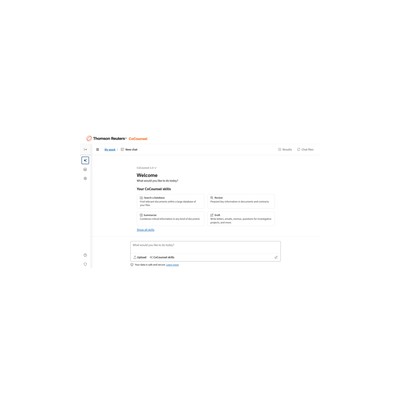
Getting Started Guide
How to Use Casetext
A practical guide to get you up and running with Casetext. Written by Delv Editorial, Delv Team.
Getting started with Casetext
In this guide, you’ll learn how to set up and use Casetext for legal research, document analysis, and memo drafting. By the end, you'll be able to navigate the platform efficiently and streamline your legal workflows.Step 1: Sign up and set up
- Go to Casetext's website.
- Click on the “Get Started” button located at the top right corner.
- Fill out the sign-up form with your information (name, email, etc.) and create a password.
- If you’re interested in a demo, look for a “Request a Demo” option after signing up.
- Once registered, log in to your account using your email and password.
Step 2: Your first legal research task
- After logging in, you’ll land on the dashboard. Locate the search bar at the top of the page.
- Type in your legal question or topic in natural language (e.g., "What are the elements of negligence?").
- Press “Enter” or click on the magnifying glass icon to initiate the search.
- Browse through the list of cases, statutes, and secondary sources that appear.
- Click on a relevant case to view more details, including summaries and key points.
Step 3: Get better results
- Use filters on the left side of the results page to narrow down by jurisdiction, date, or type of document.
- Experiment with different phrasing in the search bar for varied results.
- Save important cases or documents by clicking the “Save” button next to each item for easy access later.
- For drafting memos, click on “Draft” in the menu, then select “New Memo” and follow the prompts to incorporate your research findings.