
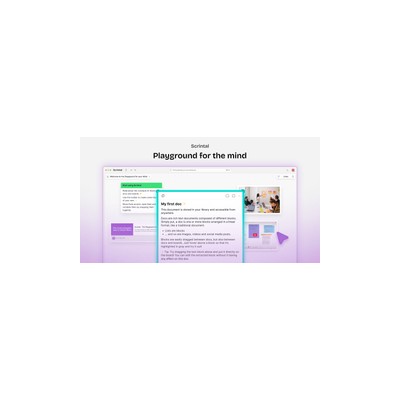
Getting Started Guide
How to Use Scrintal
A practical guide to get you up and running with Scrintal. Written by Delv Editorial, Delv Team.
Getting started with Scrintal
In this guide, you'll learn how to set up Scrintal for visual note-taking and mind mapping. By the end, you'll be able to create interconnected notes and manage your research effectively.Step 1: Sign up and set up
- Go to Scrintal's website.
- Click on the "Get Started for Free" button on the homepage.
- Enter your email address and create a password, or sign up using Google.
- Confirm your email address by clicking the link in the email Scrintal sends you.
- Log in to your new account to access the main dashboard.
Step 2: Your first mind map
- On the dashboard, click the "New Canvas" button to create a blank canvas.
- Use the "Text Card" tool from the toolbar to add your first note. Click on the canvas to place it.
- Type your idea or topic in the card.
- To connect ideas, create more cards and drag from the small circle on the edge of one card to another to draw a line. This creates a link between them.
- To add images or other media, click the "Image" or "Media" buttons in the toolbar and upload your files.
- Continue adding and connecting cards until your mind map reflects your research.
Step 3: Get better results
- Use bi-directional backlinks to link related notes. Click on the card you want to link from, then use the "Link" option in the toolbar to create a connection to another card. This helps you see relationships between ideas.
- Organise your canvas by grouping related notes together. Use different colours for cards to visually distinguish between topics.
- Regularly save your work by clicking the "Save" button in the top right corner.