
Getting Started Guide
How to Use Wordvice AI
A practical guide to get you up and running with Wordvice AI. Written by Delv Editorial, Delv Team.
Getting started with Wordvice AI
In this guide, you'll learn how to use Wordvice AI to enhance your academic papers and professional content. You'll be able to check grammar, paraphrase text, and translate content effectively in just a few minutes.Step 1: Sign up and set up
- Go to Wordvice AI.
- Click on the "Sign Up" button in the top right corner.
- Fill in your details or use a Google account to register for a free account.
- Confirm your email address if prompted.
Step 2: Your first writing task
- After logging in, click on the "New Document" button on the dashboard.
- Paste or type your text into the editor area.
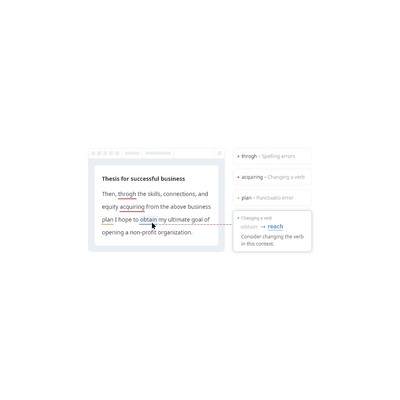
- To check grammar, click on the "Grammar Check" button located in the toolbar.
- Review the suggested corrections and click on each suggestion to apply changes.
- For paraphrasing, highlight the text you want to rephrase and click on the "Paraphrase" button.
- Review the paraphrased text and make any necessary adjustments.
Step 3: Get better results
- Use the "Translation" feature by selecting the text and clicking on the "Translate" button. Choose your target language from the dropdown menu.
- Experiment with the "Text Editor" settings to adjust formatting, style, and tone based on your audience.
- Regularly save your work by clicking the "Save" button to avoid losing progress.