
About Clipchamp
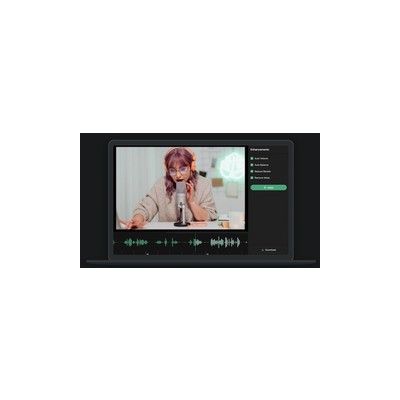
I recently dived into Clipchamp, Microsoft's free online video editor, and I have to say, it’s quite the tool for anyone needing to whip up videos without the headaches of complex software. At its core, Clipchamp offers a user-friendly interface that caters to both beginners and seasoned editors. This browser-based platform is packed with features that allow for everything from basic cuts to more advanced edits, like transitions and overlays. The standout functionalities for me were the AI captions and text-to-speech options, which can save hours of time, especially if you're working with languages beyond English. Automatic captioning is a big plus, especially for accessibility, and it can be done in various languages, which is a nice touch for a global audience.
Pricing is another aspect worth discussing. The tool operates on a freemium model, which means you can start using it at no cost, but you might hit a wall when you need more advanced features or higher resolution exports. The free tier does allow for HD exports, but you'll find that some of the flashier features, like premium stock videos and higher quality downloads, are tucked behind a paywall. It’s a decent entry point for individuals and small teams, but if you’re looking for full functionality, expect to fork out some cash.
Clipchamp shines in its integration with Microsoft 365, making it a logical choice for teams already within that ecosystem. This is particularly useful for collaborative projects where everyone needs to pitch in. However, while the integration is seamless, the platform feels a bit light on advanced features when compared to some of its competitors like Adobe Premiere Rush or Final Cut Pro. For users who require more sophisticated editing capabilities, Clipchamp may not fully satisfy their needs.
In my experience, Clipchamp is perfect for content creators, educators, and marketers looking to produce engaging video content without needing a film school diploma. However, if you're a professional videographer or someone who relies on high-end post-production capabilities, you might find yourself wanting more than what Clipchamp can offer. It’s a strong contender for casual to semi-professional use, but it has its limitations that could hinder more advanced editing workflows.
Our Review
Verified 11 May 2026Reviewed by Delv Editorial, Delv Team
Clipchamp had me sceptical at first, mainly because I’ve spent years wrestling with complex video editing software that often feels like it’s designed for rocket scientists rather than mere mortals. But then I logged into Clipchamp, and I was pleasantly surprised by its simplicity and functionality. As a tech journalist, I often need to create quick video content, and I found Clipchamp's interface refreshingly straightforward. You can drag and drop your clips, add transitions, and even toss in some stock footage without feeling like you’ve entered a labyrinth.
What really impressed me were the AI-driven features. The automatic captioning is a godsend for anyone looking to make their videos more accessible. I tested it with a video in English and then switched to Spanish, and it handled the task with surprising accuracy. This is particularly helpful for educators or content creators who want to reach a broader audience. The text-to-speech functionality also worked well, saving me from having to record my voice for a tutorial video, which is something I really appreciated.
However, it’s not all rainbows and sunshine. The lack of advanced editing tools is a significant drawback. If you’re someone who thrives on intricate edits and high-level post-production effects, you might find Clipchamp lacking. For instance, I couldn’t do any serious colour grading, and that’s something I value in my video workflow. Additionally, the free tier, while useful, does have its limitations, particularly when you start wanting access to the premium stock library or higher quality exports.
Comparing Clipchamp to Adobe Premiere Rush, for example, I found that while Premiere Rush offers a more comprehensive editing suite, it comes with a steeper learning curve and subscription fee. Clipchamp is much more approachable, making it suitable for those who just want to get started without the intimidation factor.
In terms of pricing, the freemium model is a double-edged sword. It’s fantastic for dipping your toes in without any financial commitment, but the transition to the paid features might feel a bit abrupt if you’re used to the free offerings. Overall, if you're a casual user, a small business owner, or an educator, Clipchamp is a solid choice for creating engaging video content without the fuss. Just be mindful of its limitations if you’re aiming for something more professional.
Getting started with Clipchamp
In this guide, you will learn how to quickly start using Clipchamp, Microsoft's free online video editor. You'll be able to create and edit videos with ease, including adding AI captions and text-to-speech features.
Step 1: Sign up and set up
Step 2: Your first video edit
Step 3: Get better results
Pro tip
Use the “Shortcuts” feature found in the Help menu to learn keyboard shortcuts for speeding up your editing process. For example, pressing "S" will split a clip at the playhead.
Common mistake to avoid
Avoid skipping the preview step before exporting. Always play through your video to catch any errors or awkward cuts that you might miss while editing.
The Verdict
Clipchamp is a worthwhile option for casual video editors and small business owners looking to produce engaging content without breaking the bank. While it excels in user-friendliness and AI features, those needing advanced editing capabilities might want to look elsewhere. If you're focused on simplicity and quick results, give Clipchamp a shot; but if you require high-end tools, you might want to explore more comprehensive software.
Best For
- Casual video editors who want a straightforward editing experience without a steep learning curve.
- Small business owners who need to create promotional videos on a budget.
- Educators producing instructional content that requires accessibility features.
- Social media managers tasked with generating quick, eye-catching video content.
- Content creators who want to simplify their editing workflow while maintaining quality.
At a Glance
Clipchamp is a user-friendly online video editor from Microsoft that combines AI-driven features like automatic captions and text-to-speech with a straightforward interface. Its freemium model makes it accessible for beginners, while its integration with Microsoft 365 enhances collaboration for teams.
Strengths
- +The automatic captioning feature is a significant time-saver, especially for those producing content in multiple languages, allowing for greater accessibility and reach.
- +The text-to-speech functionality is surprisingly effective, making it easier to create voiceovers without needing to record your own audio, which is perfect for quick edits.
- +The free tier is genuinely useful, providing HD export options that suit casual users and small businesses who can't justify a hefty subscription just yet.
- +The user interface is intuitive and designed for ease of use, which means that even those with little to no video editing experience can navigate the tool without frustration.
- +Integration with Microsoft 365 is a big bonus, as it allows for smooth collaboration and sharing among team members who are already using Microsoft’s ecosystem.
- +Clipchamp offers a variety of templates that can help jumpstart your projects, particularly useful for social media content where you need to create visually appealing videos quickly.
Limitations
- -The limited advanced editing features mean that serious video editors may find Clipchamp lacking, particularly when it comes to in-depth colour grading or effects.
- -Some premium features, like high-quality stock video access, are locked behind a paywall, which can be frustrating for users looking for a comprehensive editing experience without extra costs.
- -The performance can occasionally lag during heavy exports, which might be a concern if you’re working under tight deadlines and need quick turnaround times.
- -The mobile experience isn't quite as polished as the desktop version, which can be a drawback for those looking to edit on the go.
- -While the integration is a plus, it can also feel a bit limiting if you're not already using Microsoft 365, pushing users towards that ecosystem.
Use Cases
- -Social media managers who need to create eye-catching video content quickly for platforms like Instagram and TikTok.
- -Educators looking to produce instructional videos with captions for better accessibility in their online courses.
- -Marketing teams needing to generate promotional videos that require quick edits and voiceovers without extensive video editing knowledge.
- -Small business owners who want to create professional-looking video ads without hiring a videographer or spending a fortune on software.
- -Content creators who produce video blogs or tutorials and require an efficient way to add captions and voiceovers.