About TimeBolt
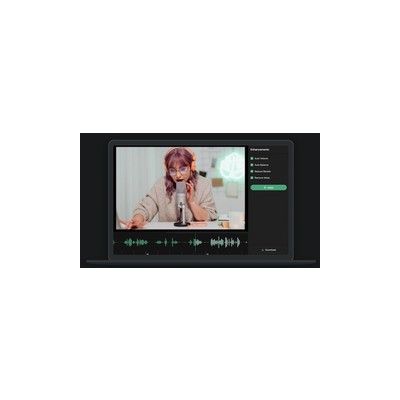
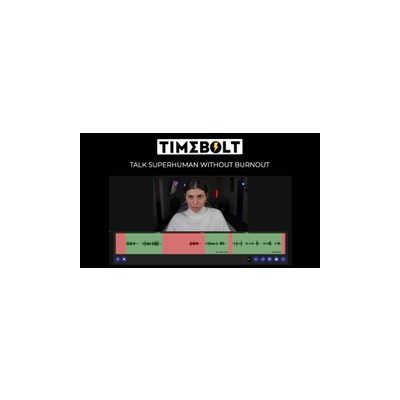
TimeBolt is a desktop application that promises to save content creators, podcasters, and video editors a hefty chunk of time by automatically cutting out silences and filler words from audio and video recordings. It’s available for both Windows and Mac, which is a relief, as I’ve seen far too many tools that only cater to one platform. The app uses advanced algorithms to process videos at lightning speed; I tested it with a one-hour video, and it completed the task in under a minute. This impressive speed is crucial for anyone who finds themselves drowning in hours of footage and just wants to get to the final edit without losing their sanity.
One of the standout features of TimeBolt is its ability to export edit decision lists compatible with major editing software like Adobe Premiere Pro and Final Cut Pro. This means you can easily integrate TimeBolt into your existing workflow without having to abandon your preferred editing suite. During my testing, I found that the exported lists made it easy to fine-tune the edits without having to start from scratch. It’s worth noting that TimeBolt claims to achieve zero-repair output, which sounds a bit flashy, but in practice, it means that the final product is clean and ready for consumption without any awkward halts or stuttering.
However, as great as TimeBolt sounds, it’s not a one-size-fits-all solution. For instance, while it excels at cutting silences and filler words, it doesn’t offer traditional editing features like transitions, effects, or audio mixing, which can be a dealbreaker for more seasoned editors looking for a comprehensive suite. Furthermore, the pricing can be a bit of a conundrum. While the website mentions that it’s a paid service, it doesn’t clearly list what users can expect to pay, leaving potential customers in the dark. This lack of transparency can be frustrating, especially when you’re trying to budget for tools that you want to invest in.
In terms of who should use TimeBolt, it’s a fantastic tool for content creators who need to produce polished videos quickly, such as YouTubers or podcasters who may not have the luxury of time. However, if you’re someone who enjoys the creative aspects of editing and needs more control over the finer details of your projects, you might find TimeBolt lacking in that department. It’s a good fit for those who want to get through the grunt work of editing without getting bogged down in the minutiae, but not necessarily for those who want full creative control over their final product.
Our Review
Verified 11 May 2026Reviewed by Delv Editorial, Delv Team
When I first got my hands on TimeBolt, I was sceptical. I mean, can a desktop app really save me all that time in audio and video editing? But after putting it through its paces, I can confidently say that it does what it claims—quite effectively, in fact. The automatic removal of silences and filler words is a godsend for anyone who’s ever had to sift through hours of footage only to find that half of it is just dead air or 'um's and 'uh's. I tested it with a one-hour podcast episode, and it processed that in under a minute, which is astonishing. The final cut was clean, and it didn’t feel like I lost any of the essential context or flow, which is a win in my books.
What impressed me the most was the export feature that creates edit decision lists for major editing software. This means that I could easily take my work into Premiere Pro without losing any edits, which is a huge plus if you already have a preferred editing suite. However, I did notice that TimeBolt isn’t perfect. It lacks traditional editing features like transitions, effects, or audio mixing, which means it’s not the be-all and end-all for seasoned editors. If you’re looking for a comprehensive editing tool, you’ll still need to rely on something like Premiere Pro or Final Cut Pro after cleaning up your audio.
Another downside is the pricing. While the website mentions that it’s a paid service, I couldn’t find any clear information on what it costs. This is a bit of a buzzkill for someone like me who likes to know what I’m getting into financially before I commit to a tool. It would be nice to see some transparency there.
In conclusion, TimeBolt shines for podcasters and content creators who need to get quality material out quickly. If you’re someone who enjoys the nitty-gritty of editing and requires full creative control, you might find TimeBolt to be a bit limiting. But for those looking to cut down on the repetitive aspects of editing and focus on the creative side, it’s definitely worth a look. Just keep in mind you’ll want to have another tool in your arsenal for those more complex edits.
Getting started with TimeBolt
In this guide, you’ll learn how to quickly set up TimeBolt and start editing your audio and video by removing silences and filler words. By the end, you'll be able to streamline your content creation process efficiently.
Step 1: Sign up and set up
Step 2: Your first video edit
Step 3: Get better results
Pro tip
To save time, set default settings in the "Preferences" menu for future projects. This way, you won’t have to adjust the same settings for each new video.
Common mistake to avoid
Avoid setting the silence threshold too low; this can lead to cutting out important dialogue. Test your settings with a short clip before processing longer videos to ensure quality.
The Verdict
TimeBolt is a must-have for content creators who want to save time on audio and video editing by automatically cutting out silences and filler words. However, if you're after a comprehensive editing suite with more advanced features, you might want to look elsewhere. Overall, it's an excellent tool for quick, clean edits, but be aware of its limitations.
Best For
- Podcasters who need to clean up recordings quickly
- YouTubers looking to speed up their editing process
- Content creators with a high volume of audio and video material
- Educators producing online courses
- Freelance video editors seeking to optimise their workflow
At a Glance
TimeBolt is a desktop app that cuts out silences and filler words from your audio and video, significantly speeding up the editing process. It’s perfect for content creators who need to polish their material quickly, but it lacks traditional editing features that seasoned editors may require.
Strengths
- +The automatic removal of silences and filler words is a massive time-saver, allowing you to focus on the creative aspects rather than tedious edits.
- +Processing speed is astonishing; I processed a one-hour video in under a minute, making it ideal for those with tight deadlines.
- +Exporting edit decision lists compatible with software like Premiere Pro adds a layer of flexibility to your workflow, making it easy to integrate into existing projects.
- +The zero-repair output means the final product sounds natural, without awkward cuts or pauses, enhancing the overall quality of the content.
- +User-friendly interface makes it accessible for beginners, so you don’t have to be an editing whiz to get started.
Limitations
- -The lack of traditional editing features like transitions and effects means you’ll need another tool for any advanced editing tasks.
- -Pricing details are not clearly stated, creating uncertainty for potential users trying to gauge their investment.
- -The software can struggle with certain accents or speech patterns, which may lead to missed filler words or unnecessary cuts.
- -It’s desktop-only, so if you prefer to edit on mobile or need a cloud-based solution, you’ll have to look elsewhere.
- -While it’s designed for speed, the quality may sometimes suffer if the original audio isn’t clear or well-recorded.
Use Cases
- -Podcasters who want to quickly clean up their recordings and reduce editing time without sacrificing audio quality.
- -YouTubers looking to turn around content rapidly while maintaining a professional finish.
- -Content creators who produce high volumes of video and audio and need a tool to handle the more mundane editing tasks.
- -Educators creating online courses who need to edit recorded lectures without spending days on post-production.
- -Freelance video editors who want to speed up their workflow by outsourcing the repetitive task of cutting filler content.